¶ User Guide: Installing and Configuring the GoAIEAA2025 Module in Shopware
This guide provides step-by-step instructions on how to install the GoAIEAA2025 module in Shopware, configure it, and ensure it works correctly on your store's frontend.
¶ 1. Installing the GoAIEAA2025 Module
You can install the module using two methods:
- Via ZIP file (Manual Installation)
- Via Composer (Automatic Installation)
¶ 🔹 Option 1: Installing via ZIP File
¶ 📥 1.1. Download the Module
Obtain the module package (.zip file) from the GoAI AIA panel or the official GoAI website.
¶ 📂 1.2. Upload the Module Files
Extract the .zip file on your computer.
Upload the extracted folder to the following directory in your Shopware installation:
custom/plugins/GoAIEAA2025
¶ 🚀 1.3. Activate the Module
- Log in to Shopware Admin Panel.
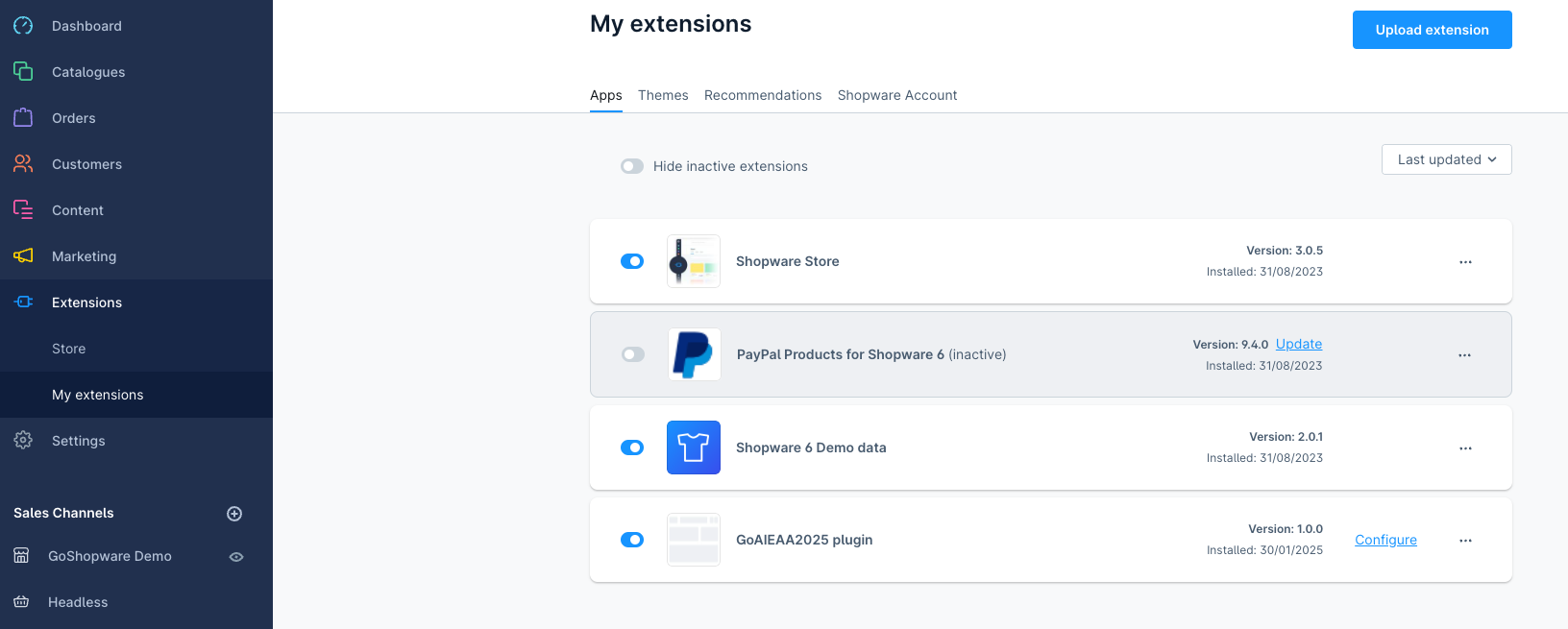
- Navigate to Extensions → My Extensions.
- Locate GoAIEAA2025 in the list of installed modules.
- Click Activate.
¶ 🔄 1.4. Clear the Cache
After activating the module, clear the cache by running these commands in the terminal:
bin/console cache:clear bin/console plugin:refresh bin/console plugin:install --activate GoAIEAA2025
¶ 🔹 Option 2: Installing via Composer
¶ 📝 2.1. Add the GoAI Repository
In your terminal, navigate to the Shopware root directory:
cd /path/to/your/shopware
Add the GoAI repository to composer.json:
{ "repositories": [ { "type": "composer", "url": "https://ai-repo.gomage.com" } ] }
Alternatively, use this command:
composer config repositories.goai composer https://ai-repo.gomage.com
¶ 📦 2.2. Install the Module
Run the following command to install the module:
composer require goai/eaa2025
¶ 🚀 2.3. Activate the Module and Clear the Cache
Execute the following commands:
bin/console plugin:refresh bin/console plugin:install --activate GoAIEAA2025 bin/console cache:clear
¶ ✅ 2.4. Verify the Installation
- Open Shopware Admin Panel.
- Go to Extensions → My Extensions.
- Ensure that GoAIEAA2025 is installed and activated.
¶ 2. Configuring the GoAIEAA2025 Script
¶ 🔹 2.1. Generate Your Personalized Script
Visit the GoAI AIA Panel:
👉 https://aia.gomage.com/
Log in with your credentials.
Generate your clientUid and customize the following parameters:
- 🎨 buttonColor – Button color (e.g.,
#2cac2c). - 🎨 bgColor – Background color (e.g.,
#4b2a2a). - 📍 position – Button position (
bottom-left,bottom-right,top-left,top-right).
Copy the generated script URL, for example:
https://aia.gomage.com/js/eaa.min.js?clientUid=dbljpvsyb&buttonColor=#2cac2c&bgColor=#4b2a2a&position=bottom-left
¶ 🔹 2.2. Add the Script in Shopware
Log in to Shopware Admin Panel.
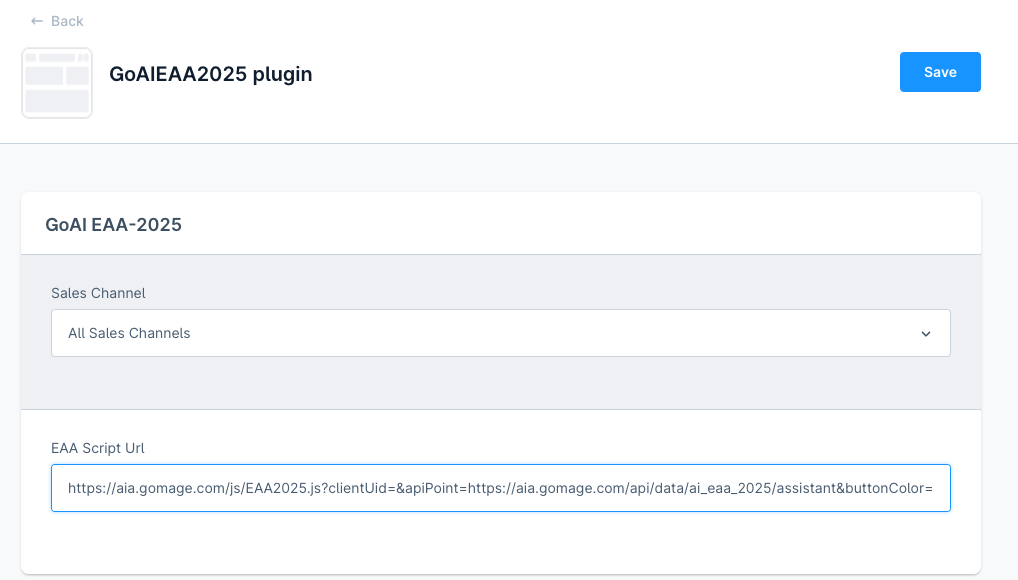
Navigate to Settings → Plugins → GoAIEAA2025.
In the field GoAIEAA2025.config.scriptUrl, paste the generated script URL:
https://aia.gomage.com/js/eaa.min.js?clientUid=dbljpvsyb&buttonColor=#2cac2c&bgColor=#4b2a2a&position=bottom-left
Click Save to apply the changes.
¶ 3. Applying Changes
- Go to Settings → Cache & Indexes.
- Click Clear Cache to apply the changes.
¶ 4. Verifying the Configuration
- Open your store’s frontend.
- Ensure that the GoAI EAA 2025 button appears in the specified position with the configured colors.
¶ 🔧 Troubleshooting
If the button does not appear:
✅ Check clientUid – It must match the one generated in the GoAI AIA panel.
✅ Verify the Script URL – Ensure there are no typos in the URL.
✅ Clear your browser cache – Refresh the page or clear the cache to load the latest changes.
🎉 You have successfully installed and configured the GoAIEAA2025 module in Shopware! 🚀